TABLE OF CONTENTS
- When to use a Learning journey
- Create your Learning journey
- Sections in Journeys
- Settings
- Add learners
- Final steps - Preview and Publish
- Duplicate a journey
When to use a Learning journey
A Learning journey in the Collegial platform allows you to present learners with a number of learning item cards in a specific order, with clearly stated goals, fellow participants and a clear view of their progress towards the completion of the journey. Learners can be added or they can choose to join the journey themselves.
In creating a Learning journey you can:
- choose the order the learning items are shown in
- choose if the order of the learning items is set or flexible for the participant
- add text for the Journey description and Journey goal
- set the Journey Status of visibility and different Completion criteria
- add Content
- add participants to the Journey
- see participant progress
- see Journey statistics
Create your Learning journey
Get started:
- Click the “Journeys” tab
- Click the “New Journey” button. Choose from our content templates (instructions under “Create a journey from a template” below) or create your own journey from Blank
Create a journey from Blank:
- Click “Blank”.
- Enter a title (max 95 characters), select your space (only appears if you have more than one space to choose from)
- Click “Create”. Note that you can edit the title later
Edit title and cover image:
- Click “Edit” at the top right corner to edit the title and change the cover image by simply uploading a new one
Add content:
- Click “Add learning items”. Note that you can’t add other Learning journeys or Collections, since they include several learning items in turn
- Search and add the learning items you want to include
- Click “Save”
Edit the order of learning items or add more:
- Click “Edit” under “Learning items”
- Click the plus button below the learning items to add more items
- Add Content or add a Survey Check-in where the participants can reflect on how the journey is relevant for them
- Add a Check-out survey where the participants can complete the journey by reflecting on how relevant what they’ve learned is for their work
- Drag and drop to adjust the order
- Click “Save”
Remove learning items:
- Click the three dots button on the learning item list
- Click “Remove”
- Click “Save”. Note that if there’s only one learning item in the journey you can’t remove it. It’s mandatory to have at least one item in the journey
Autosave and Co-editing when editing journey items
Learning journeys specifically supports co-editing thanks to an auto-saving functionality. This aims to prevent lost changes and reduce conflicting edits so that teams of Admin users can work faster with confidence.

How it works
- Autosave for item edits inside a Journey are indicated using an autosave indicator in the top bar next to the Journey name.
- Presence is indicated using an avatar of the the user editing the same items.
- Changes persist automatically; the indicator confirms when saves complete.
- Presence signals display when others are editing, helping teams coordinate updates.
Sections in Journeys
Sections aims to streamline complex Journeys into understandable chunks, to reduce cognitive load for learners, and to give admins cleaner control over scope, prerequisites, and pacing.
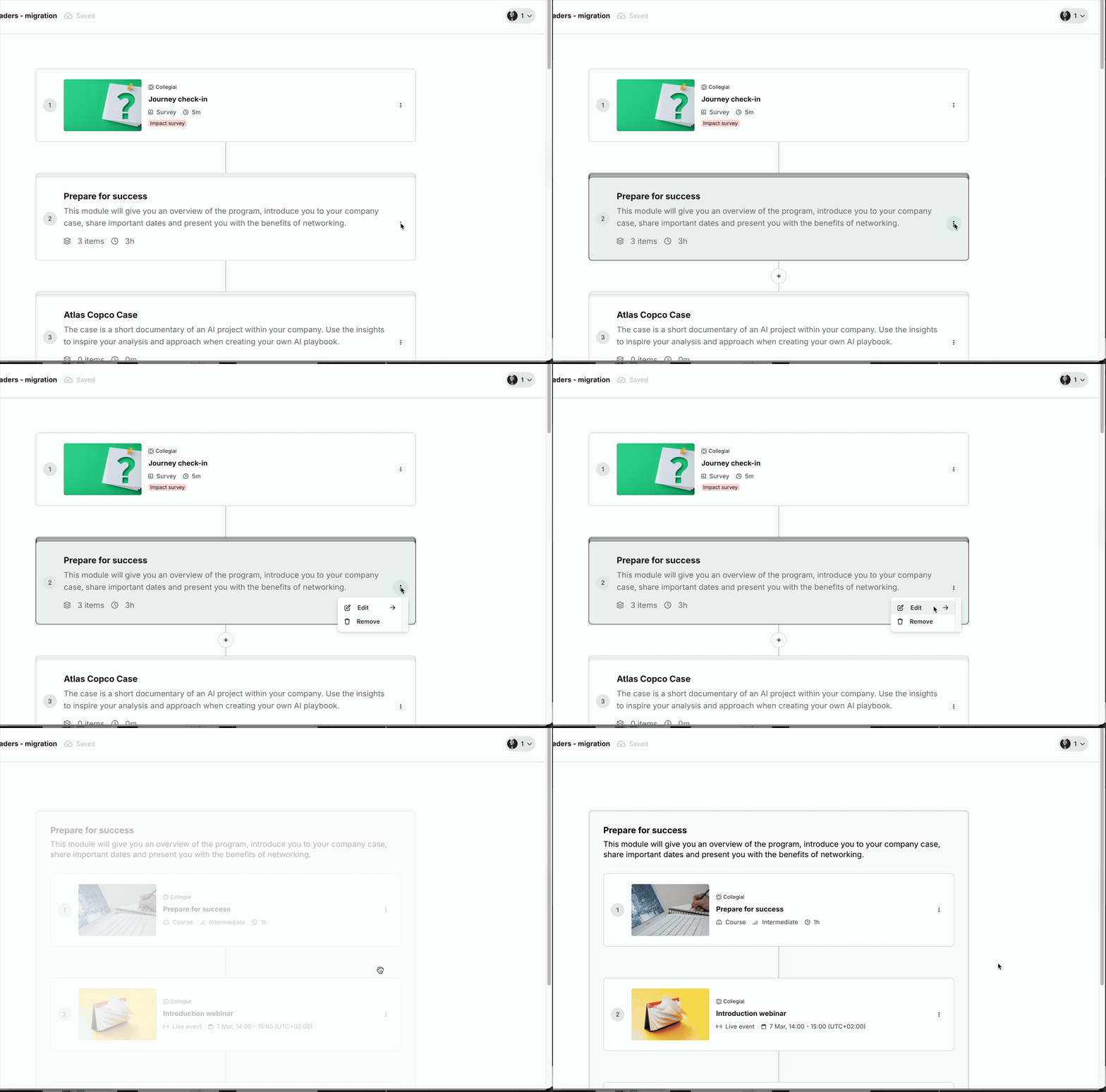
Create Sections inside a Journey to group items as an additional organizational level.
- Sections act like learning items: you can mark a Section optional, schedule it, and track learner progress within it.
- Scheduling for Sections (availability rules on the Section card):
- Always available
- After a previous item is completed
- On a specific date (choose date and time; the Section unlocks at that moment)
- Move items into or out of a Section via the three-dots menu in the learning item card.
- Learners see Sections on the Journey page; selecting a Section reveals all items within it.
- Each Section shows item count and an estimated time to complete required items.
Adding Sections
- In the Journey editor, add a Section and Add or Move to items into it.
- If you as an Admin try to add an item to a Section and see Added, the item already exists somewhere in this Journey (not necessarily in this Section). Need the same content in multiple Sections? Duplicate the item first, then add or move the duplicate into the other Section.
- To place an item in the desired section, locate the item in the outline, open the three-dots menu, choose Move to, and select the target Section.
- Configure Section options (optional, availability) as you would for learning items.
- Learners see Sections with item count and time estimates and can expand to view contained items.
Settings
Add Journey description and goals:
- Click “Edit” under “Journey description” (max 500 characters)
- Write an introduction to what the journey is about and why it is important for the participants and the organization. You can also clarify what is expected from the participants
- Add the impact and goals of the Learning journey under “Journey goals” (max 500 characters)
- Click “Save”
Change Journey Status:
- Click “Edit”
- Choose between “Unpublish”, “Publish” or “Delete”. If you don’t make a choice, unpublished is default
- Click “Save”
Change Completion criteria:
- Click “Edit”
- Choose between “Complete all items” or “Invest a set amount of time”. If you don’t make a choice, “Complete all items” is default
- Click “Save”
Add learners
To learn how to add individual learners or teams to your Learning Journey, see how to add people to a journey.
Final steps - Preview and Publish
- Preview your journey to ensure everything’s just right for the learner
- Click “Publish” in the top right corner. This will trigger an email notification to the participants you have added. This email welcomes them, informs them that they have been added to the journey by you, and gives them a link to the journey to get started
Your Learning journey is now accessible for all learners in Explore, and in My Learning for the learners who have already been added.
Duplicate a journey
Was this article helpful?
That’s Great!
Thank you for your feedback
Sorry! We couldn't be helpful
Thank you for your feedback
Feedback sent
We appreciate your effort and will try to fix the article