Release Date: September 12, 2025
This release focuses on clarity for learners and speed for admins. Learners get structured Journeys with Sections, clearer progress and next steps, event reminders, and contextual course navigation; admins gain stronger Journey structure, autosave with editor presence, and faster duplication across content.
TABLE OF CONTENTS
- Summary
- Deep dive
- 1. Sections in Journeys (Admin & Learner)
- 2. Autosave and Co-editing when editing journey items
- 3. Join Requirement in Journeys
- 4. New Journey Progress Visualization
- 5. Upcoming Events Container in Journeys
- 6. Contextual Navigation Buttons in Courses
- 7. Duplication: Courses, Learning Items, and Course Pages
Summary
Sections in Journeys (Admin & Learner)
We’ve introduced Sections to group learning items within a Journey. This aims to make Journeys easier to scan and manage, improving structure for admins and orientation for learners.
Autosave and Co-editing when editing journey item
Edits to Journey items now autosave. A status indicator next to the Journey name confirms saves, and top-right presence shows who else is editing. This aims to reduce the risk of lost work and avoid conflicting changes.
Join Requirement in Journeys
To make progress on any learning item in a Journey, learners are now prompted to join the Journey for the full experience. This aims to ensure progress tracking and guidance are consistent from the start.
New Journey Progress Visualization
The learner progress bar reflects the completion rule set by the admin (“Finish all required items” or “Invest X hours”) and displays required-item counts plus an estimated time to completion. This aims to help learners orient quickly and identify their next step.
Upcoming Events Container in Journeys
A new container highlights the next live event within the Journey while learners continue through content. This aims to keep time-bound sessions top-of-mind without breaking flow.
Contextual Navigation Buttons in Courses
Floating, contextual call-to-action buttons tell learners the next action needed on a course page (scroll, submit, reflect, or next). This aims to speed up learner completion and reduce cognitive load.
Duplication: Courses, Learning Items, and Course Pages
Admins can now duplicate a course from the Course settings, duplicate learning items from the Content tab, and duplicate individual course pages in an outline. This aims to accelerate authoring by reusing proven structures.
Deep dive
1. Sections in Journeys (Admin & Learner)
This aims to streamline complex Journeys into understandable chunks, to reduce cognitive load for learners, and to give admins cleaner control over scope, prerequisites, and pacing.
What’s new
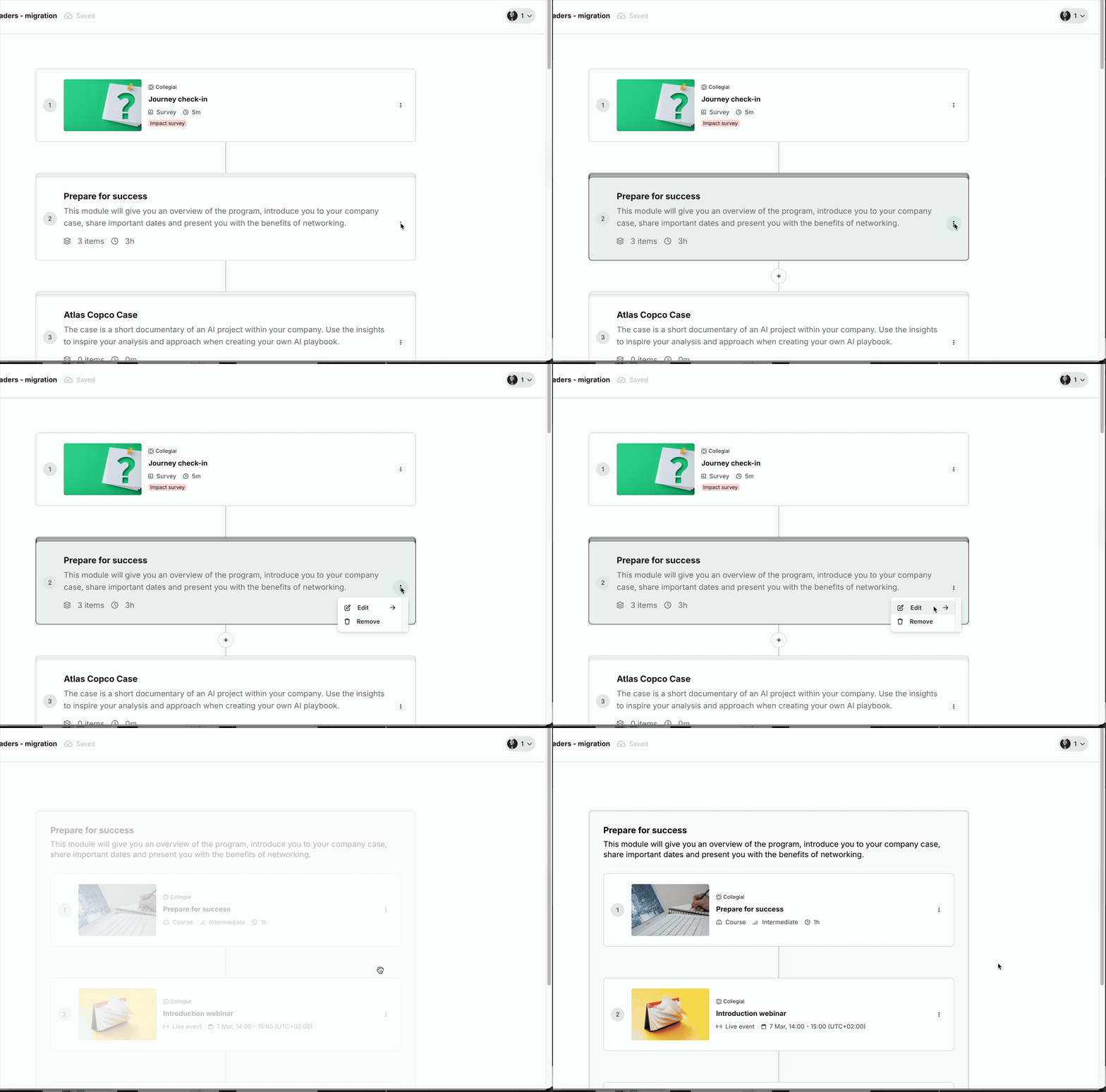
Create Sections inside a Journey to group items as an additional organizational level.
- Sections act like learning items: you can mark a Section optional, schedule it, and track learner progress within it.
- Scheduling for Sections(availability rules on the Section card):
- Always available
- After a previous item is completed
- On a specific date (choose date and time; the Section unlocks at that moment)
- Move items into or out of a Section via the three-dots menu in the learning item card.
- Learners see Sections on the Journey page; selecting a Section reveals all items within it.
- Each Section shows item count and an estimated time to complete required items.
How it works
- In the Journey editor, add a Section and Add or Move to items into it.
- Configure Section options (optional, availability) as you would for items.
- Learners see Sections with counts and time estimates and can expand to view contained items.
- If you try to add an item to a Section and see Added, the item already exists somewhere in this Journey (not necessarily in this Section).
- To place it in the desired section, locate the item in the outline, open the three-dots menu, choose Move to, and select the target Section.
- Need the same content in multiple Sections? Duplicate the item first, then add or move the duplicate into the other Section.
2. Autosave and Co-editing when editing journey items
This aims to prevent lost changes and reduce conflicting edits so teams can work faster with confidence.

What’s new
- Autosave for item edits inside a Journey, with an autosave indicator in the top bar next to the Journey name.
- Presence: see who else is editing the same items.
How it works
- Changes persist automatically; the indicator confirms when saves complete.
- Presence signals display when others are editing, helping teams coordinate updates.
3. Join Requirement in Journeys
This aims to ensure learners receive consistent guidance and accurate progress tracking.

What’s new
- In order for Collegial to effectively track a learner's progress in a given journey, learners must now actively join Journeys in order to consume their content.
How it works
- When a learner attempts to engage with a Journey item while not joined, they’re prompted to Join.
- After joining, the progress bar, next-step prompts, and event reminders activate for that learner.
4. New Journey Progress Visualization
This aims to give learners immediate orientation: what’s left, how long it may take, and the precise next action, so momentum is easier to maintain.
What’s new
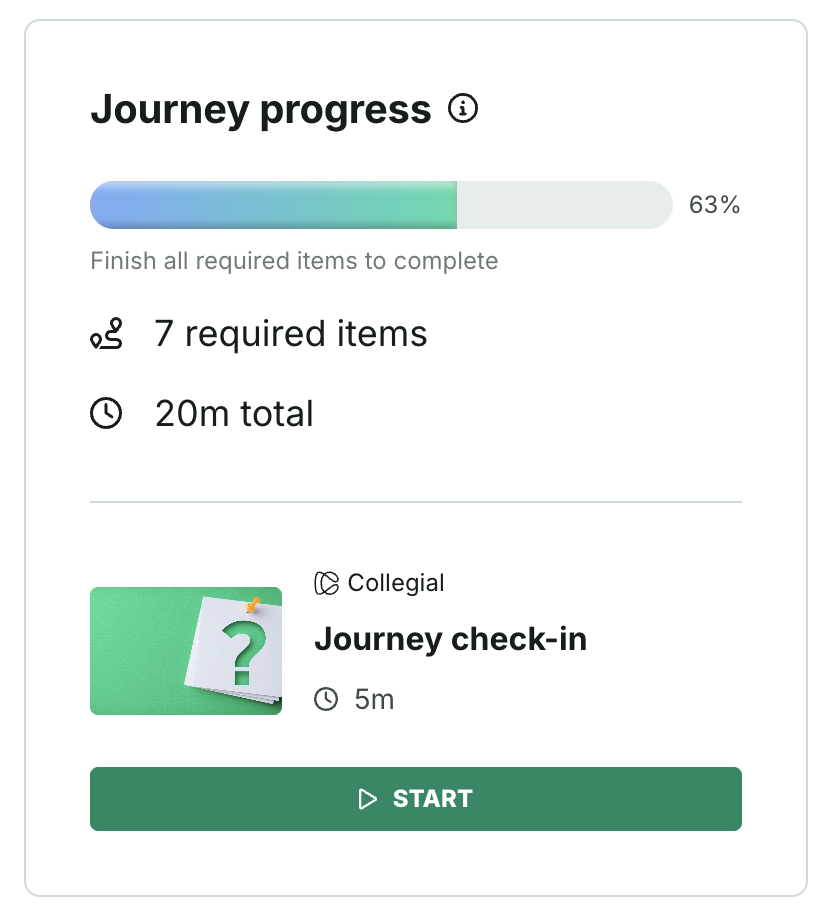
A progress bar communicates the Journey’s selected completion rule:
- Finish all required items to complete, or
- Invest X hours to complete
Both set by the admin at the Journey settings level.
Displays required item count and estimated time to complete those items.
Surfaces the exact next step to start or continue when the learner has joined the journey.
On completion, the bar shows 100% and the completion date inside the progress container.
How it works
- In Journey settings, admins choose a completion rule.
- For Invest hours, admins set the hours target at the Journey level. Learners can invest those hours in any required learning items. Note that time spent in optional items does not count toward completion.
- The system updates progress and time estimates as learners complete activities.
5. Upcoming Events Container in Journeys
This aims to keep time-sensitive sessions visible so learners can plan and attend without losing track of their current flow.

What’s new
- A dedicated container highlights the next live event in the Journey while learners navigate content.
How it works
- When a live event exists, the container surfaces the next upcoming one with the date, time and location (when applicable) to guide attendance.
6. Contextual Navigation Buttons in Courses
This aims to reduce friction by telling learners exactly what’s needed, intending to improve completion rates and page comprehension.
What’s new
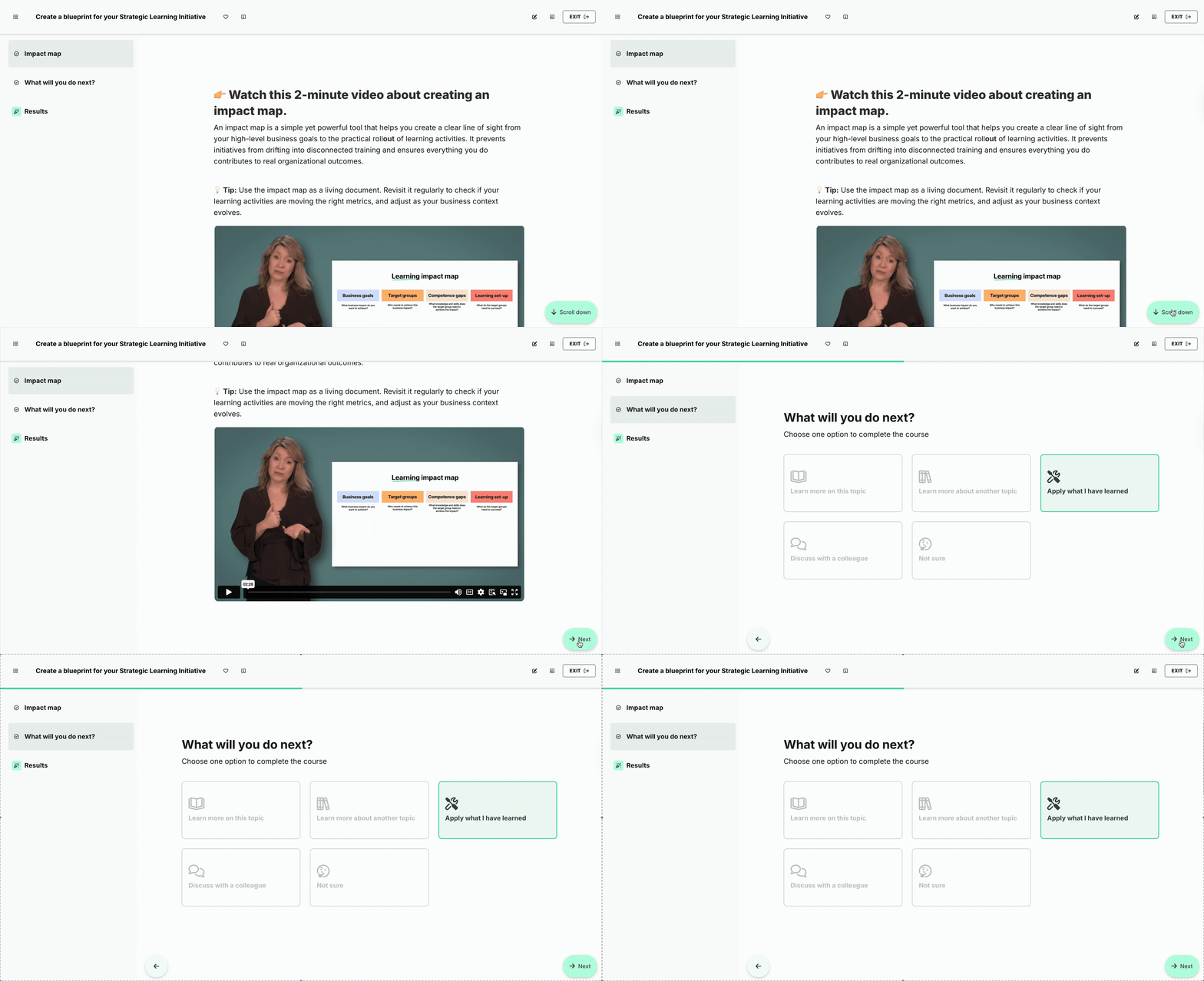
- Floating, contextual buttons on course pages indicate the next action to complete the page: scroll down, submit answer, write reflection, or next.
How it works
- Buttons remain visible as learners read.
- The button remains task-specific — scroll, submit, write — and turns to Next only after the page’s key requirement is completed.
7. Duplication: Courses, Learning Items, and Course Pages
This aims to speed up authoring by letting admins reuse structures, reduce repetitive setup, and iterate safely.
What’s new
- Duplicate a Course from the Course Edit page via Settings
- Duplicate a Learning Item (course, webinar, seminar, e-learning) from the Content tab via the row’s more menu
- Duplicate Course Pages within a course outline; the duplicate page is added directly below the original.
How it works
- Duplicate the item of your choice ; the system clones the selected entity and navigates you to the new edit context for adjustments.
- What’s copied: the content and structure of the selected course, learning item, or page.
- What’s not copied: learner-generated data (reflections, quiz answers), nor the participants list.
Was this article helpful?
That’s Great!
Thank you for your feedback
Sorry! We couldn't be helpful
Thank you for your feedback
Feedback sent
We appreciate your effort and will try to fix the article