Release date: February 11, 2026
This release makes Live Events more flexible and easier to manage. Admins can now set up multiple sessions in a full-page creation flow, and track attendance and completion per session in Insights. Learners can attend Live Events with multiple sessions, always see where they have a seat, and switch to another upcoming session when needed. In addition to these Live Events enhancements, Admins can now also edit and delete users from the People tab to better support GDPR Right to Be Forgotten requests.
TABLE OF CONTENTS
- 1. Creating and editing Live Events with multi-session setup
- 2. Multi-session Live Events for learners
- 3. Session-level insights and exports
- 4. Read-only session-level visibility for managers
- 5. Editing and deleting users in the People tab for all admins
- 6. Improvements
- 7. Bug fixes
- Planned: sunsetting Learning Impact Surveys in Journeys
1. Creating and editing Live Events with multi-session setup
We’ve replaced the Live Event modal with a full-page experience for both create and edit. Admins can now configure one or more sessions as part of the same setup flow.
This aims to make it easier to set up Live Events as they grow more complex, including running the same event across multiple time slots without creating separate events.
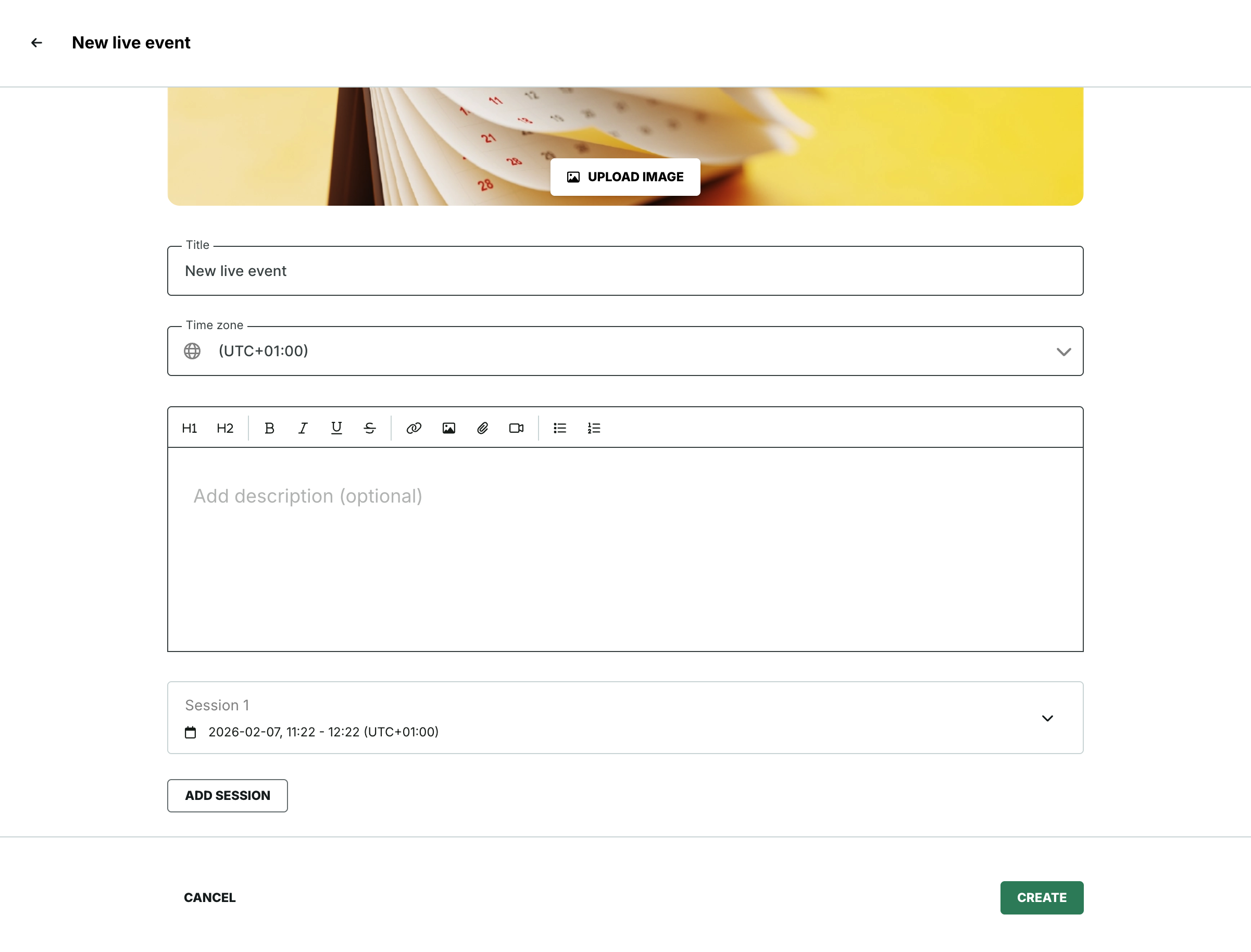
In the Live Event setup page, you can manage event details such as cover image, title, and description, and set up sessions in the sessions section:
- Session 1 is created by default and cannot be deleted
- Clicking Add session appends a new session to the list and auto-names it (Session 2, Session 3, etc.)
- Sessions can be expanded or collapsed independently so you can focus on what you’re editing
- Each session includes format (Online or In person), date and time, and required details (link or location)
- You can only delete a session if its date and time are in the future
- Recordings are shown per session, but recording actions are available only after the session has ended when editing the Live Event
- When duplicating, the new Live Event keeps the same structure, including all sessions. Session recordings are not copied
2. Multi-session Live Events for learners
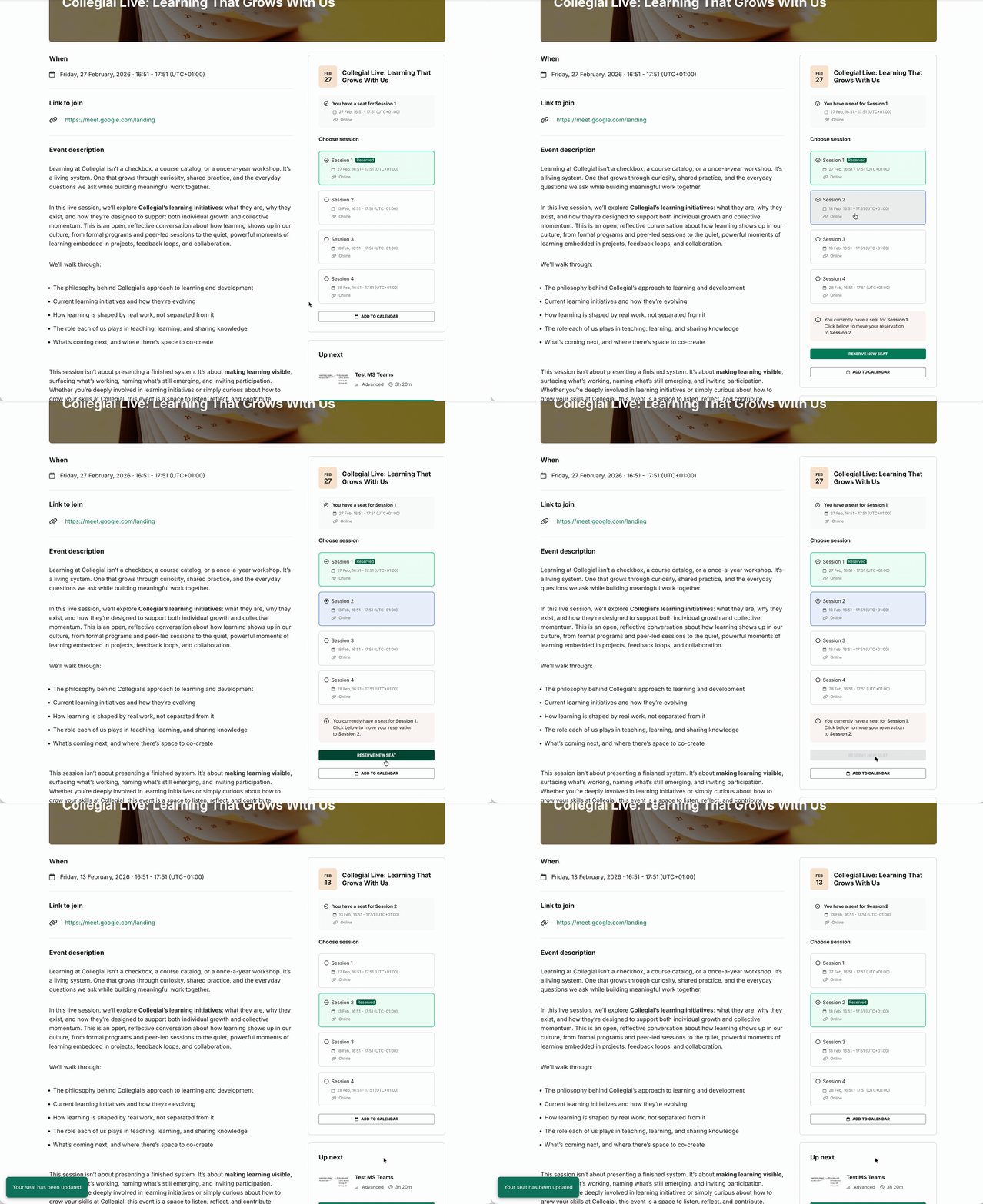
Live Events now support both single-session and multi-session formats. Learners always have a clear view of their assigned session and, when multiple sessions are available, can switch to another upcoming session directly from the event page.
This aims to balance structure and flexibility. Learners always know where they’re booked, while still having control to move to a session that better fits their schedule.
Automatic session assignment
When a Live Event is created, learners are automatically assigned to a session so that every learner always has one seat:
- Learners are assigned to the first available session based on start time
- If the earliest session has already ended, new learners are assigned to the first upcoming session
- If all sessions are in the past, learners are assigned to the most recent session
- For single-session events, learners are automatically assigned to that session
Booking and session management
All Live Events use the same two-column layout:
- The left column shows details for the learner’s assigned session
- A booking widget on the right shows session information and booking actions
For single-session events, the session is shown as confirmed by default and no session-switching options are displayed.
Switching sessions
When multiple sessions are available, learners can switch sessions with the following rules:
- Learners can switch only to sessions that have not yet ended
- Session changes take effect immediately
- No admin approval is required
- All sessions have unlimited capacity
Email notifications
Learners receive email notifications confirming their seat. For Live Events with multiple sessions, the email explains that learners can switch sessions from the event page.
3. Session-level insights and exports
This aims to make it easier to manage attendance and completion when a Live Event includes multiple sessions with different dates and times.
In Insights:
- Selecting a session filters the table to learners for that session only
- For past sessions, admins can mark attendance (Attended or Didn’t attend) and update completion
- For future sessions, learners appear as Enrolled and attendance and completion actions are not available
- Bulk actions remain available only when selected learners share the same action availability
- Exports include the session date and time for each learner
4. Multi-session visibility for managers
The Manager Dashboard now shows session-level data for Live Events and allows filtering by session. The goal is to give managers visibility into session participation and outcomes without introducing any controls that change learner status.
Managers can:
- View data across all sessions for an event
- Filter to a specific session to review participation and completion
Managers cannot:
- Modify attendance or completion
- Change learner assignments
- Use bulk actions or any state-changing controls
5. Editing and deleting users in the People tab for all admins
The existing user edit and delete flow in the People tab is now available to all admin roles. Admins can edit a user’s first name, last name, and username, or permanently delete a user after confirming the action. This aims to give customer admins a consistent way to manage user updates and deletions within their own tenant, including GDPR Right to Be Forgotten requests.
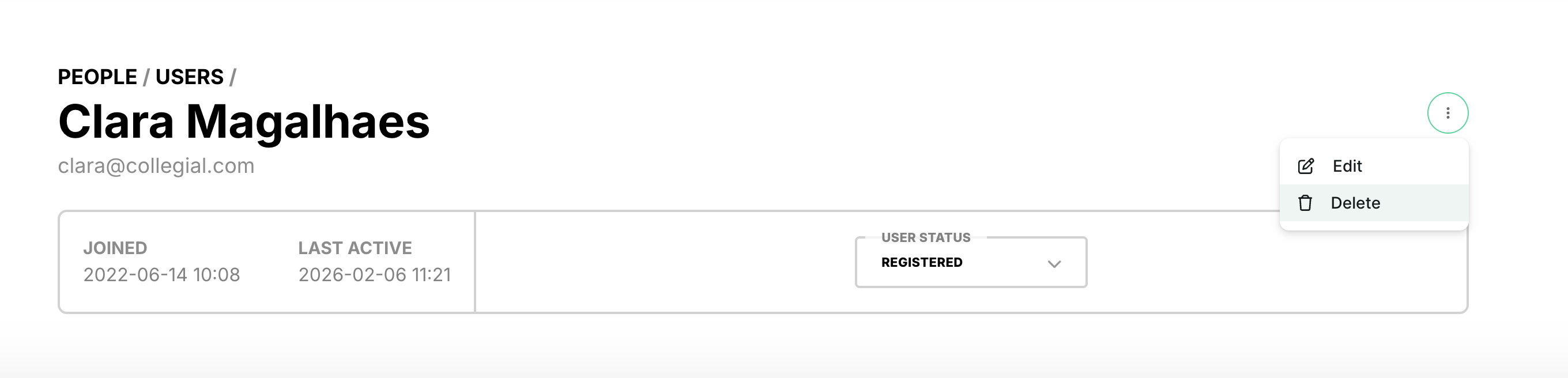
Edit a user
- Go to the People tab
- Select a user to open their profile
- Select More → Edit
- Update First name, Last name, or Username
- Email, realm, and external ID are not editable for admins
- Only super admins can edit the email field
Delete a user
- Go to the People tab
- Select a user to open their profile
- Select More → Delete
- Confirm deletion in the modal to permanently remove the user
Permissions
- Only admins can view and use Edit and Delete in the People tab
- Admins can only manage users within their own realm
- Admins cannot view, edit, or delete users outside their own realm
6. Improvements
Since our January 2026 release, we’ve also improved:
- We’ve improved our automated testing to catch issues earlier and improve release stability
- The “Up Next” container now shows for learning items inside sections, keeping progression guidance consistent across journeys with and without sections
- A “Back to journey” button now appears for learning items inside sections, returning learners to the parent journey overview
- Course pages now show a visible scroll bar consistent with other learning item pages
7. Bug fixes
Since our January 2026 release, we’ve also resolved:
- An issue where learners could not progress in, resume, or complete the e-learning packages
- A bug where LinkedIn Learning appeared as “LinkedIn” on learning item cards
- An issue where Finanskompetens progress showed as 0 hours under the Completed tab and was not visible in the Progress report
Planned: sunsetting Learning Impact Surveys in Journeys
We plan to sunset Learning Impact Surveys in Journeys in an upcoming release. This feature will no longer be supported going forward. If this change impacts your workflows, please reach out to your Customer Success contact.
Was this article helpful?
That’s Great!
Thank you for your feedback
Sorry! We couldn't be helpful
Thank you for your feedback
Feedback sent
We appreciate your effort and will try to fix the article